
Configuring sales channels for pre-orders
Purple Dot supports a selection of sales channels available to users of Shopify
Online Store
Tapcart
Fuego
POS
However, you should not enable pre-orders on sales channels where Purple Dot is not available and therefore the sales will bypass Purple Dot - this could lead to oversell.
We have made it very easy for individual variants to come on and off all your different channels whenever they come on and off pre-order.
Here's how you can enable this setting:
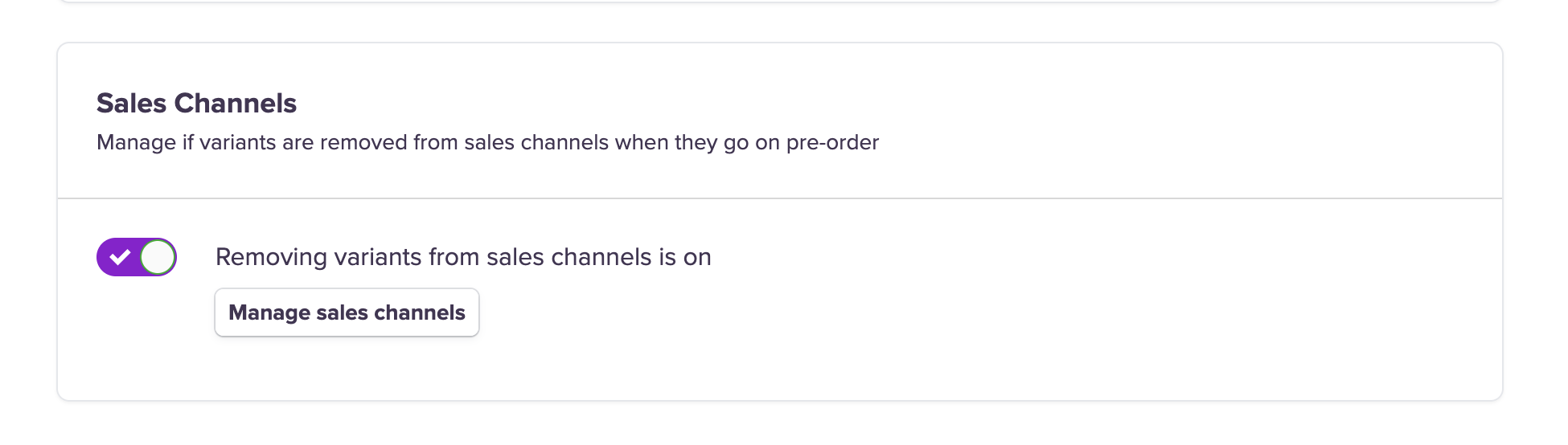
Go to the Settings tab on the left-hand dashboard. Click Operations, then toggle the Sales Channel button to enable this automation feature.
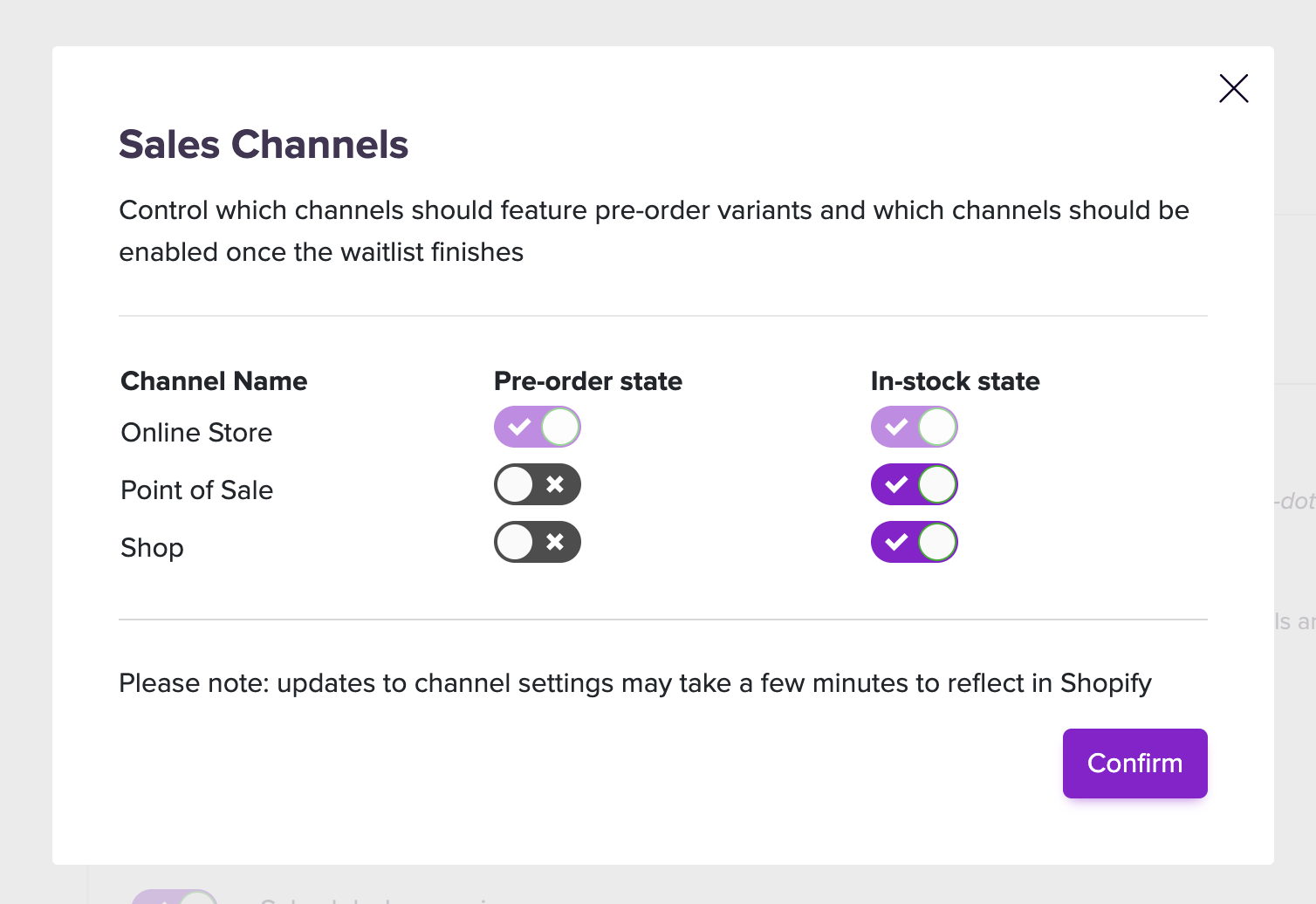
You will then need to define the channels you want to leave on when a variant is on pre-order. For example, if you only want to enable your Online Store when some variant is live on pre-order, you should configure your sales channels as follows:
Lastly, you need to define the channels you want your variants to return to when they are no longer on pre-order. That's the "In-stock state" column from above.
Please note that
It can take up to a minute for these changes to sync to your Shopify store.
If you make any changes, the new channel preferences will sync across all variants live on pre-order.
Turning off this feature will stop Purple Dot from updating channels when variants go on pre-order. If you turn it off, the current channel settings for live pre-order products will remain unchanged.