
Selling pre-orders through Point of Sale (POS)
Purple Dot supports selling pre-orders through Shopify's Point of Sale (POS) app.
Pre-orders created through POS will include additional order attributes to support reporting and attribution to staff members.
How to use
Once the Purple Dot POS app is installed, your store staff will be able to see it in their Shopify POS apps. Tap this tile to launch the Purple Dot pre-order workflow.
No additional login or setup required
Pre-orders created through this workflow can be attributed to the appropriate store and staff member
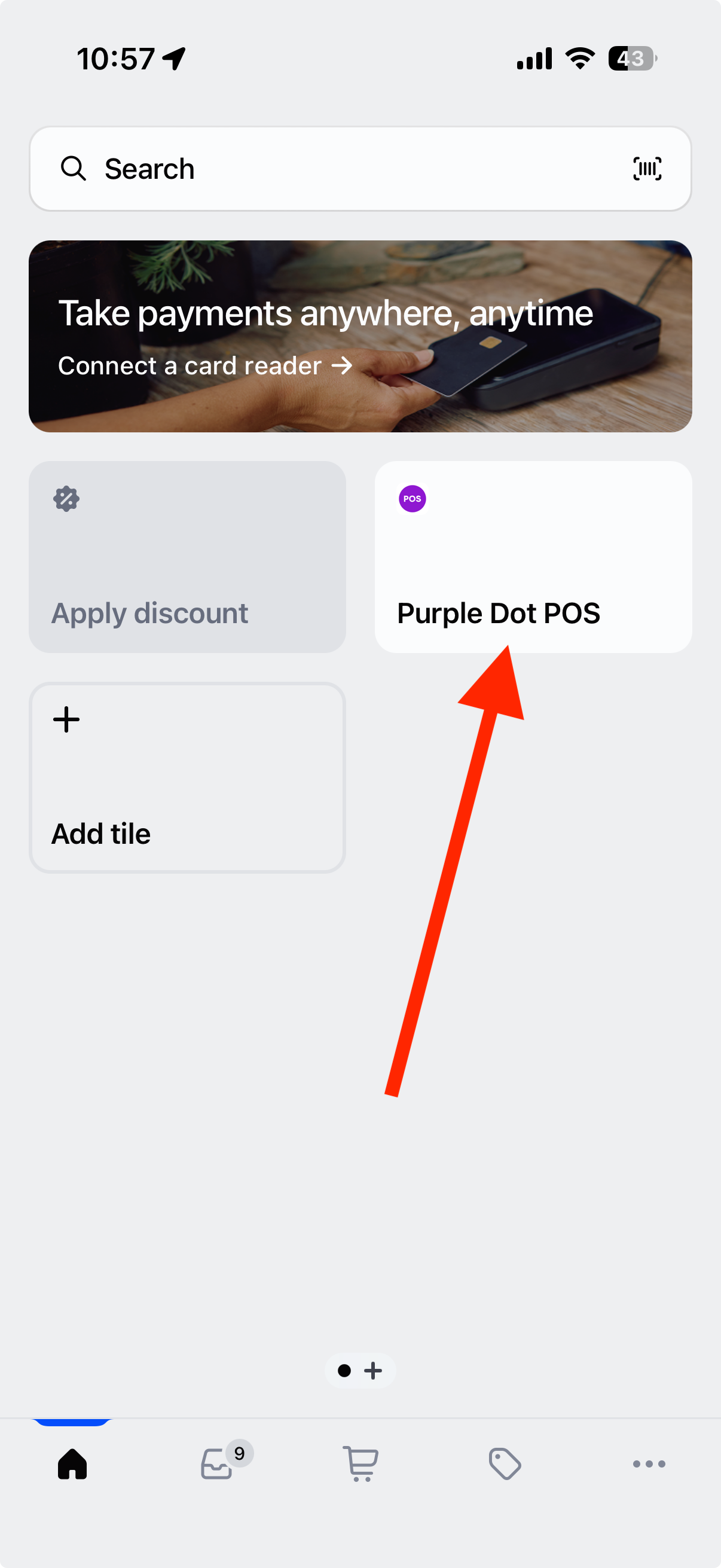
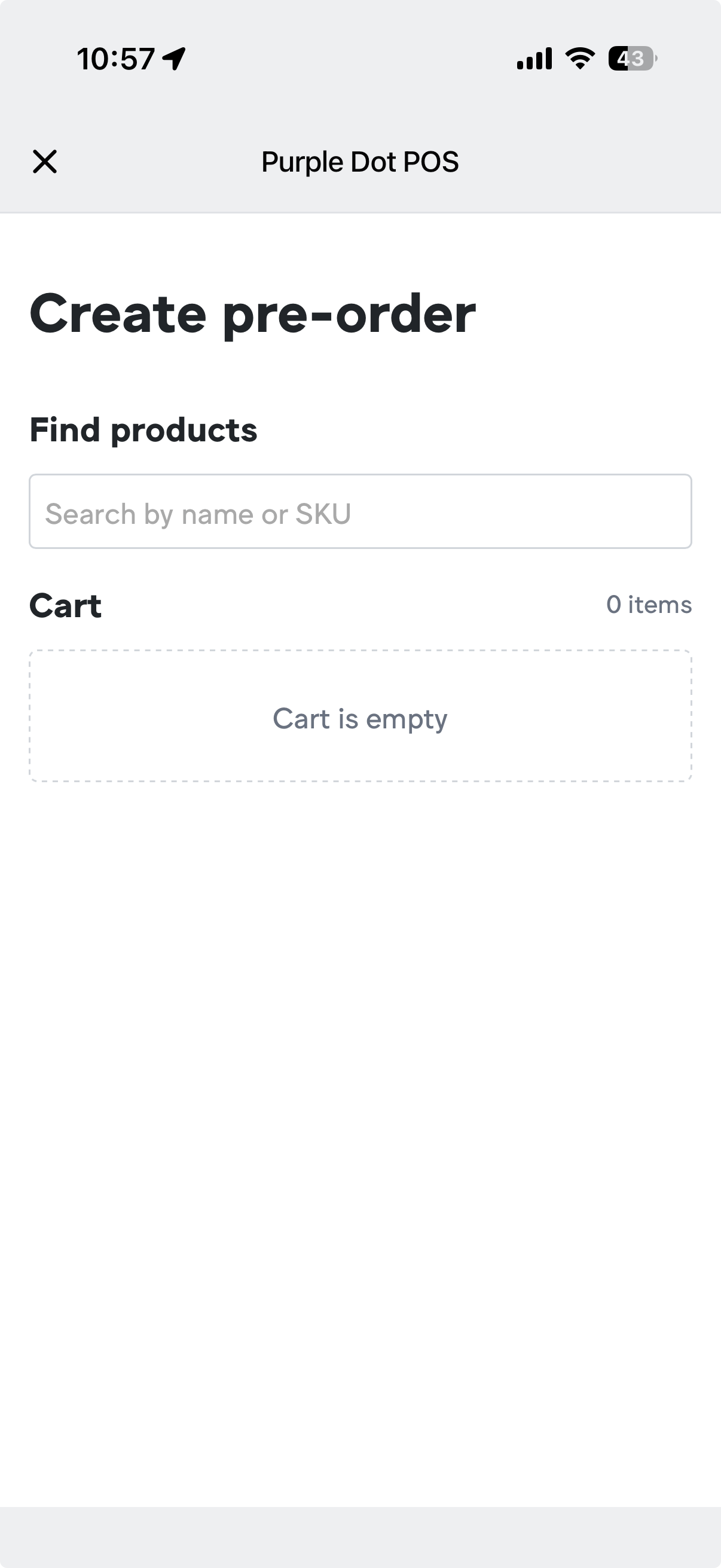
Once the Purple Dot POS app is launched, a new pre-order cart will open.
Search for products by name or SKU
Add one or more pre-order items to the cart
Review cart contents before sending to the shopper
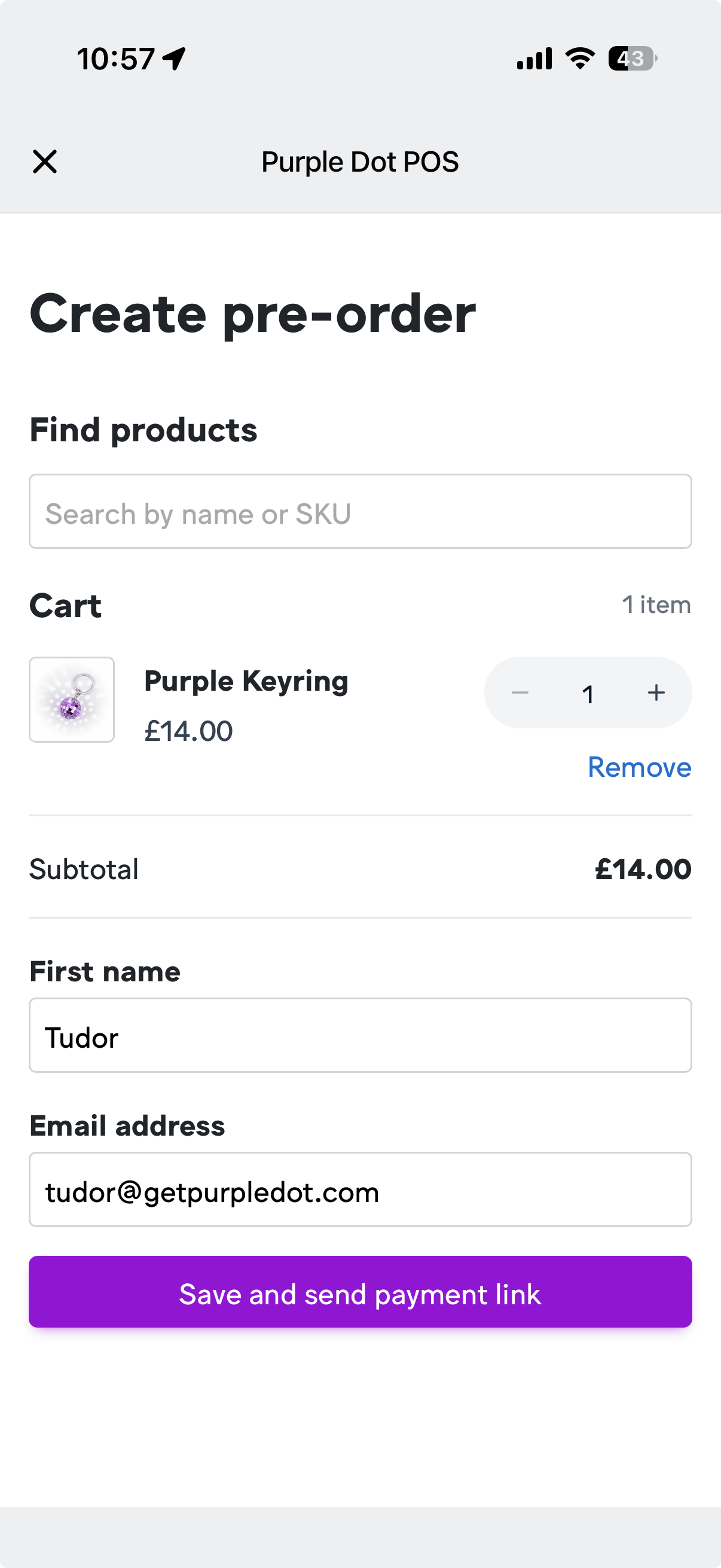
After adding products to the cart, you will be asked to enter the shopper's information and generate their checkout link.
Enter the shopper's first name and email address
Select "Save and Send Payment Link"
The shopper will receive a personalized link to complete their purchase
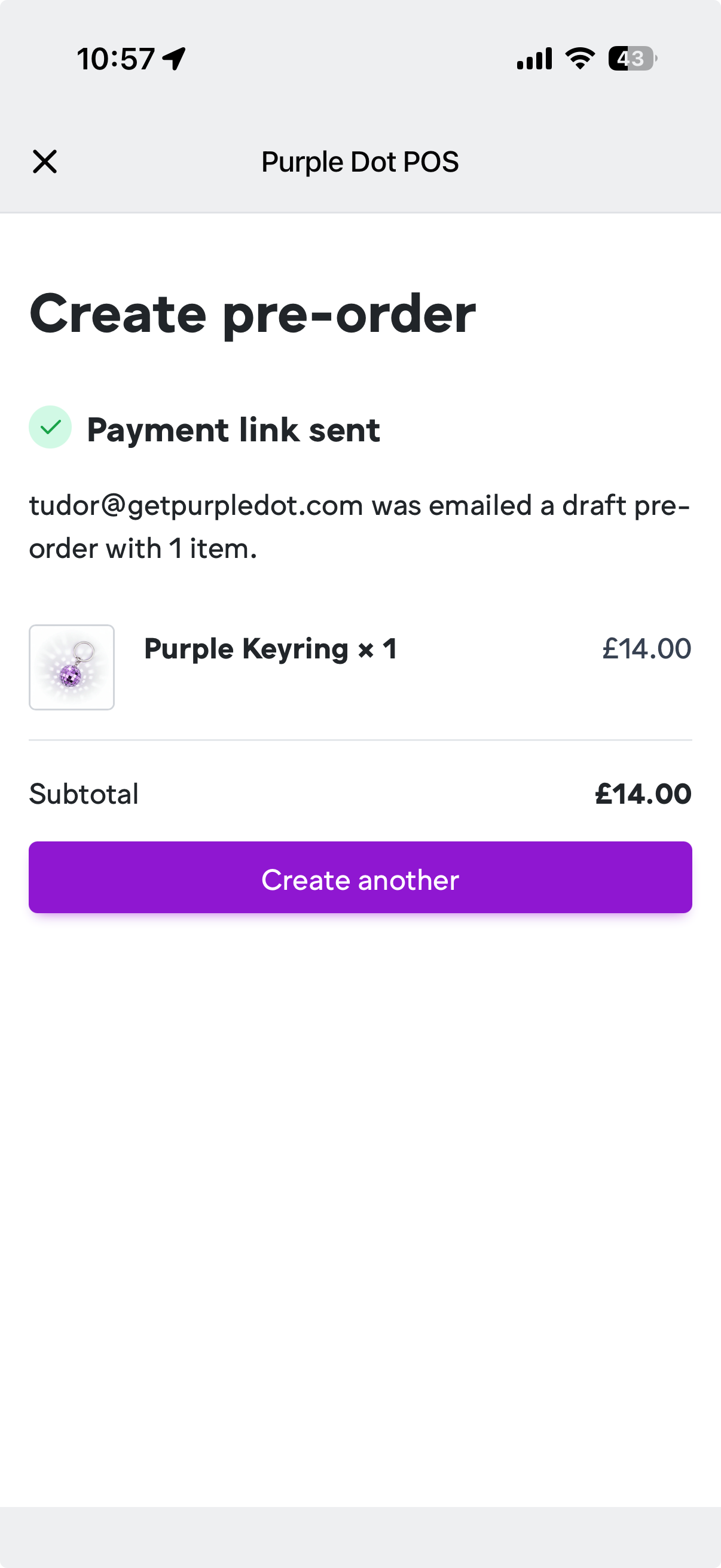
A confirmation screen will appear once the payment link has been delivered.
Confirm that the email was sent successfully
Review the products included in the pre-order
Create another pre-order or return to Shopify POS
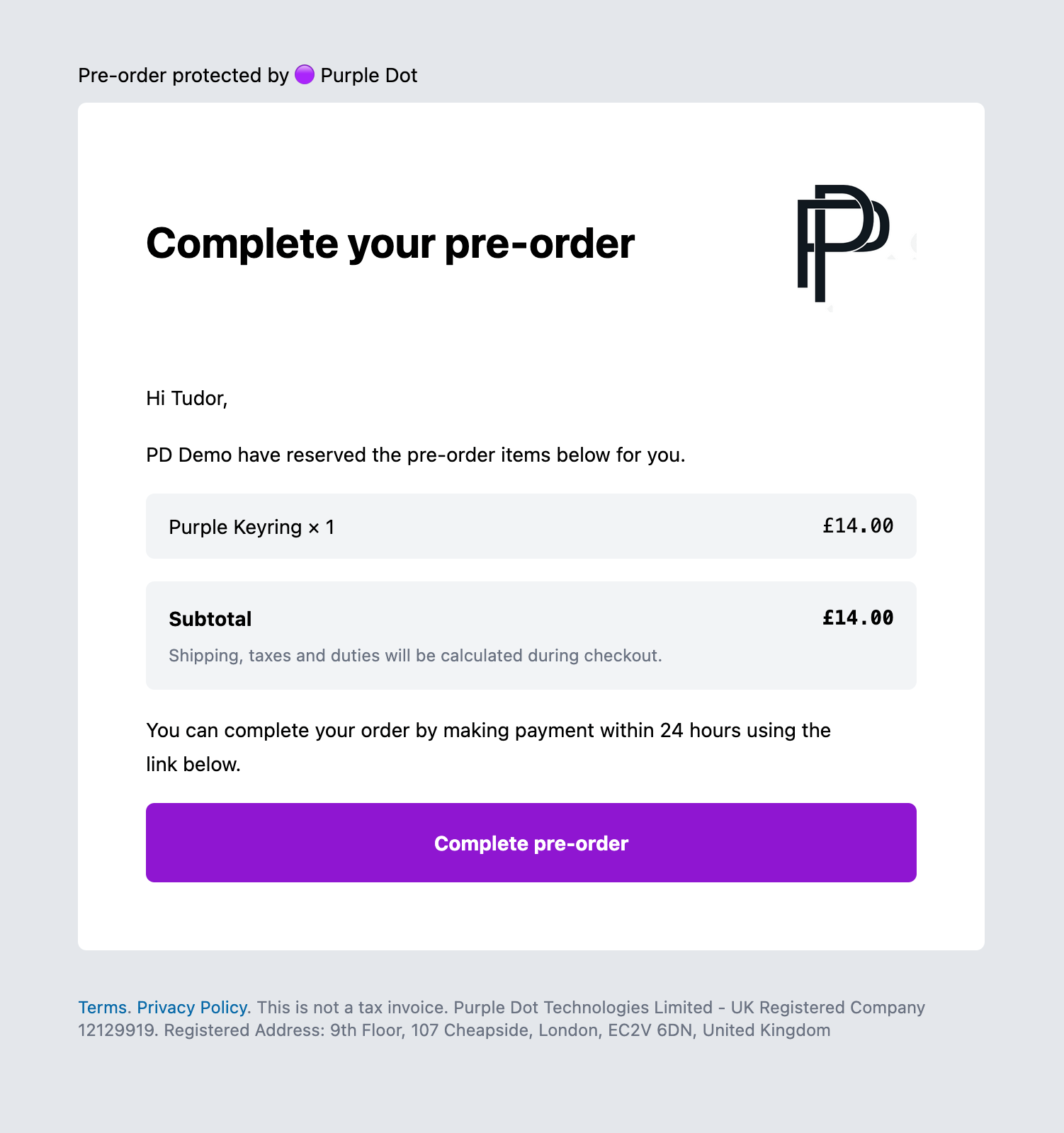
The shopper will receive an email containing a secure link to complete their pre-order purchase
Email is sent immediately
Link to complete the purchase remains active for 24 hours
Shoppers complete checkout from any device
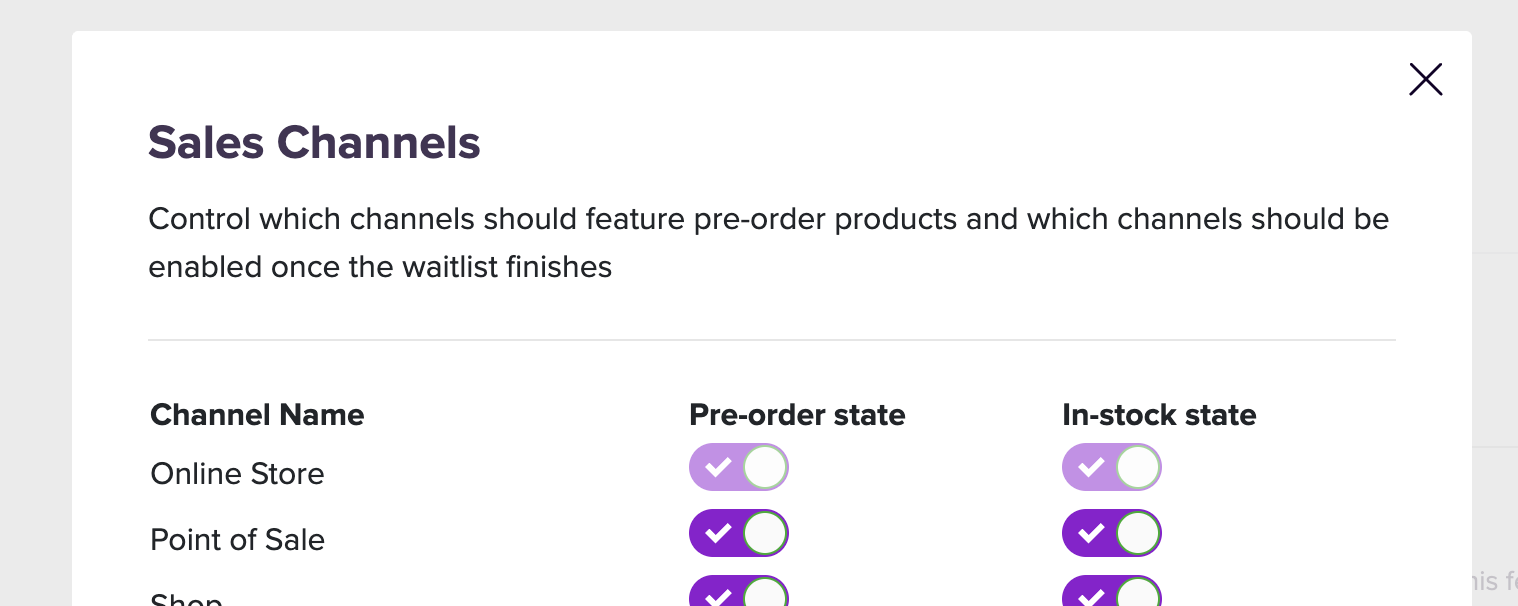
If Purple Dot is managing sales channels for your pre-orders (Merchant Portal -> Operations page -> Sales Channels) then make sure to enable "Point of Sale", else products with live Waitlists will not be searchable from the POS app:
Payments
Payments work the same way as for pre-orders sold through your online store -> for example, if your online store payments are configured to charge the shopper upon fulfillment, the same will apply to POS pre-orders.
Sale attribution and commissions
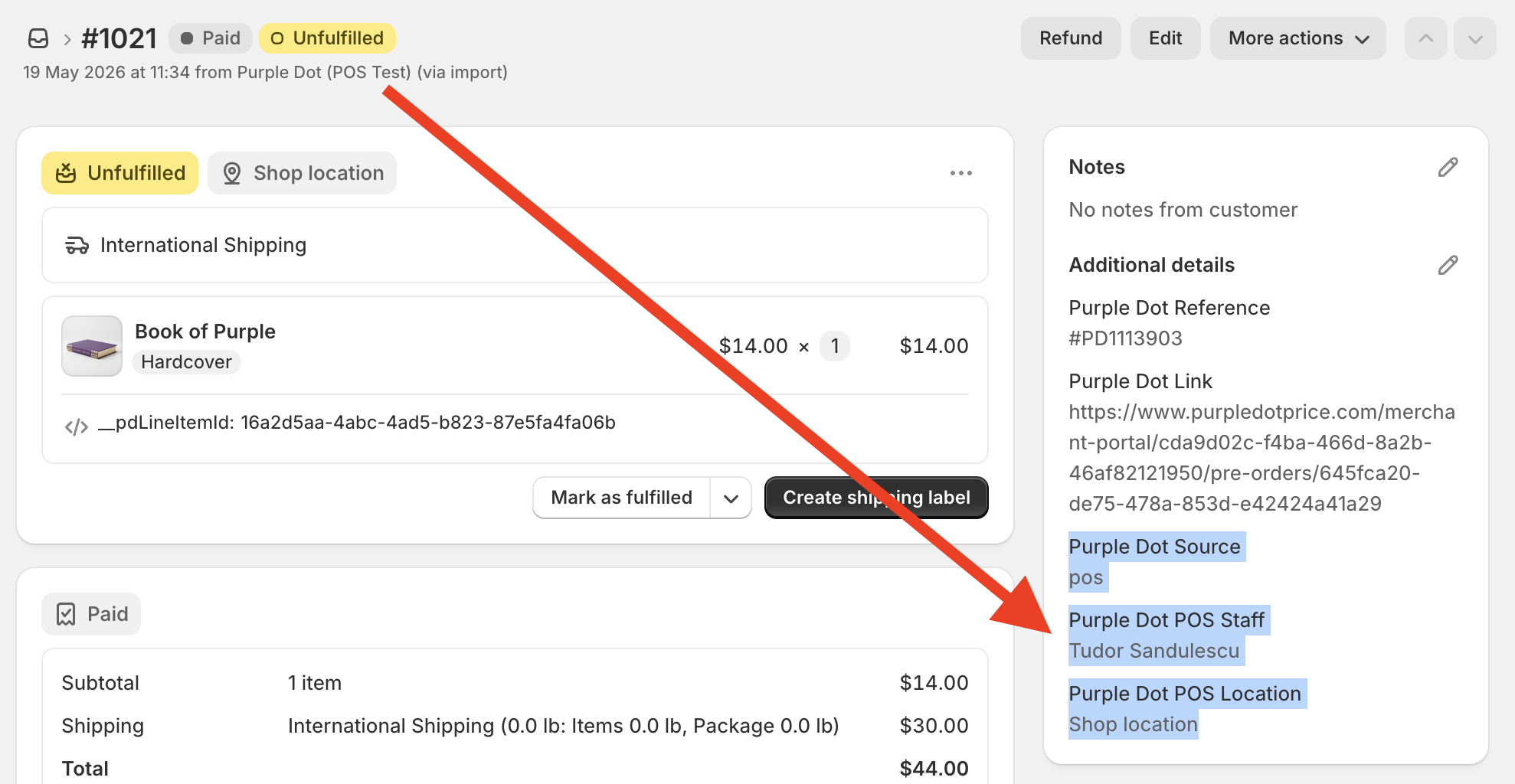
POS staff attribution assigns credit for a pre-order to a specific staff member. By default the staff member that was logged into the POS app gets the credit but this can be altered after the fact.
When the pre-order appears in your Shopify store, it will have additional "order notes" that show
it was a POS pre-order
which store (POS location) it was sold at
the staff member that should be credited
Fulfilment
Works the same way as for pre-orders sold through your online store.