
Configuring Purple Dot portal access
How to add new users?
Head over to the Settings tab in your dashboard and click Users. Here you can add or remove staff members. You can also amend user roles.
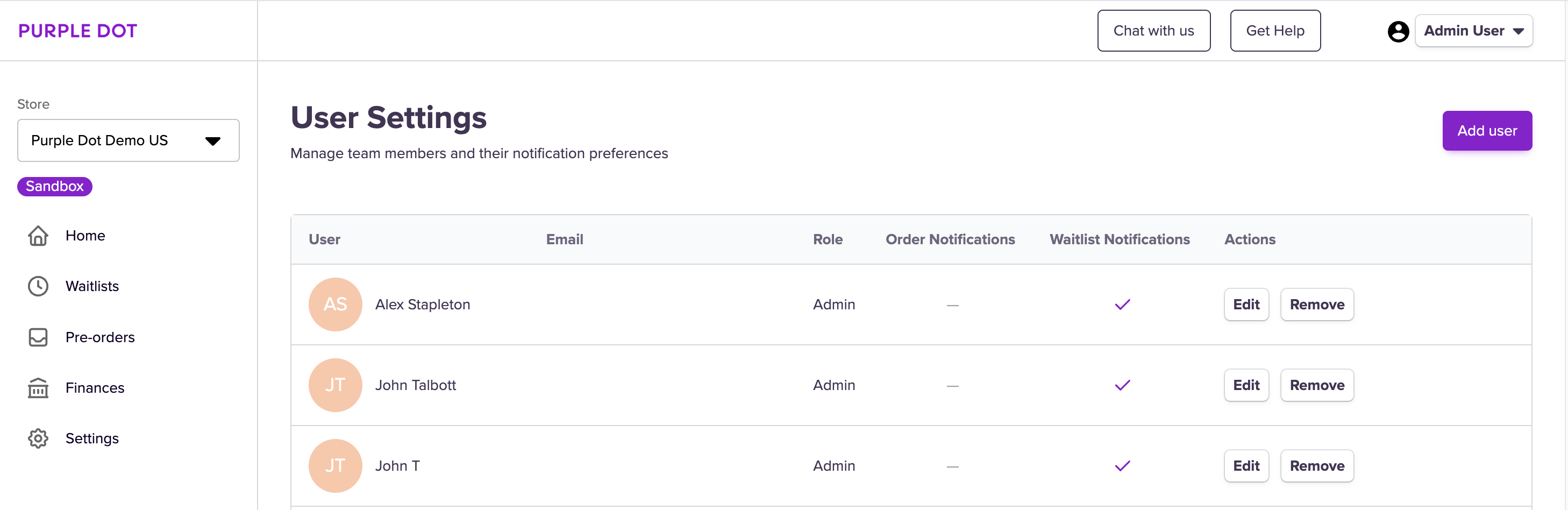
User roles control what a user can see and do in Purple Dot.
There are four roles:
Admin
Customer Support
Finance
Viewer
Only Admins can assign roles, and you must always have at least one Admin.
Which role should I choose?
The best role for a user depends on what actions you will need them to take within the platform.
The table below outlines what each role can and cannot do or see.
Role | Can | Cannot |
Admin |
|
|
Customer Support |
|
|
Finance |
|
|
Viewer |
|
|
The role you assign a user will apply to all stores (e.g. they cannot be an Admin in one and a Viewer in another).
By default, Admin users will also be opted-in to receiving email notification about Waitlists. You can disable these - or enable for other users - by editing the user settings.
How do I update someone’s role?
Admins can update roles at any time in Settings >> Users
Changes apply immediately after the role has been updated.
If you are not an Admin and need a different role assigning to you, please contact one of the Admins within your team.