
How to set up a single Waitlist?
Head over to the Waitlists tab on the left-hand side of your dashboard, click + Create Waitlists, and select Create manually.
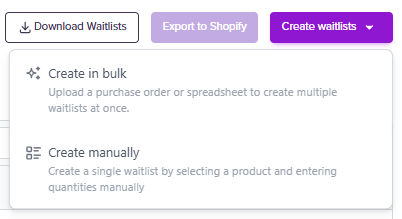
Setting up a waitlist is easy because your inventory is automatically synced from Shopify.
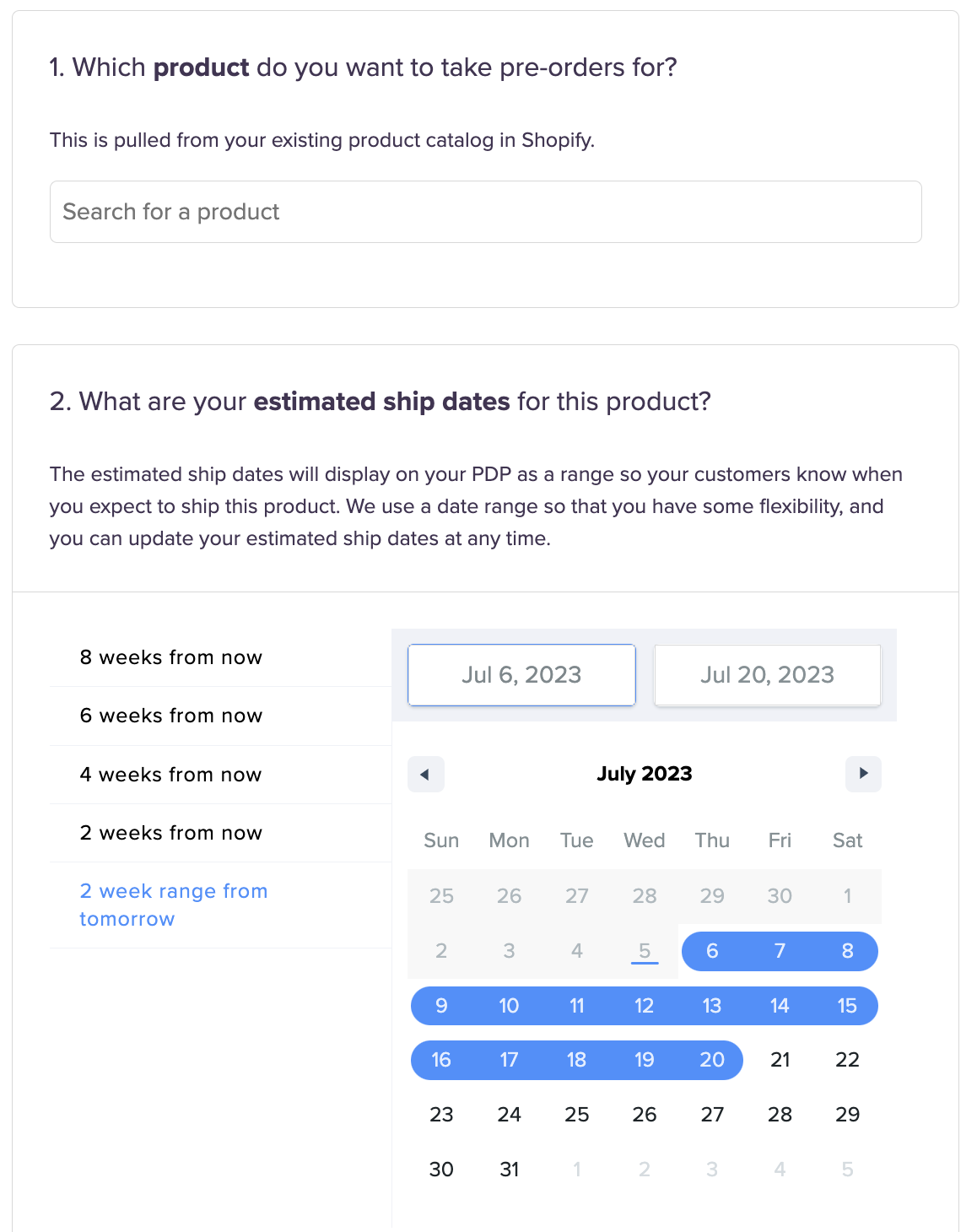
First, select a product you want to run a waitlist for. Next, choose a date window for when the pre-orders will ship to the customer and how much stock you want to make available for pre-order.
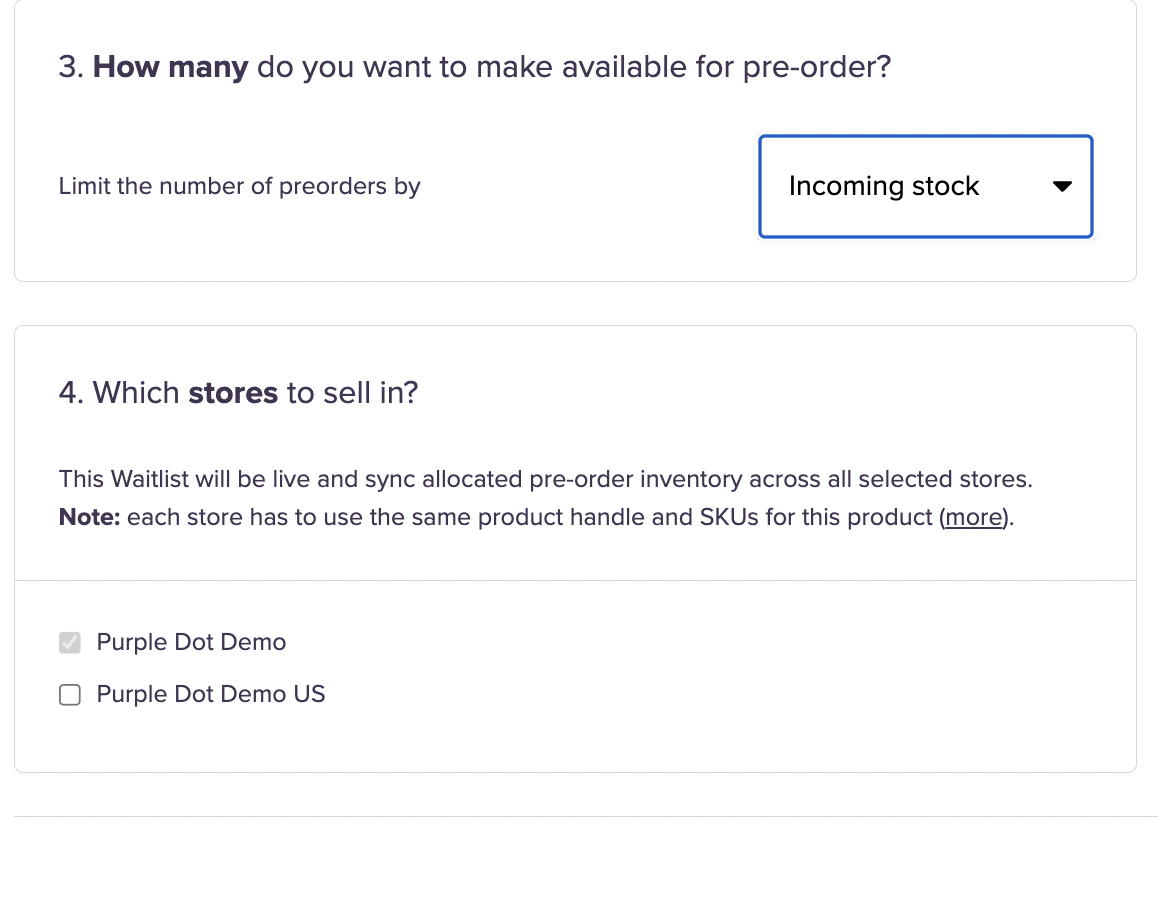
Then, you can choose how many you'd like to make available for pre-order. You can add which stores you'd like the pre-orders available in (if you sell in one country, you won't see multiple stores available).
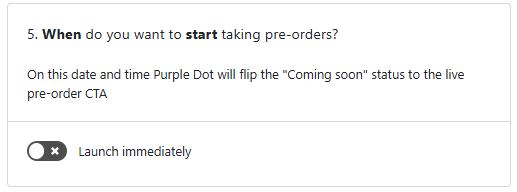
You can either schedule your waitlist to be available at a future time or launch immediately.
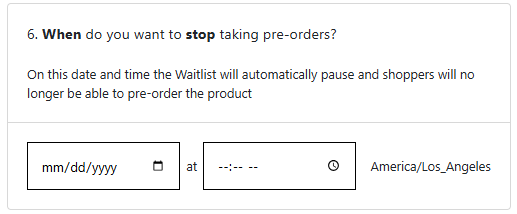
Lastly, you can choose when to stop taking pre-orders.
Click Save, and your waitlist is ready to go!
Ready to set up wait lists in bulk? See our guide on how to bulk upload waitlists.