
Setting up taxes and duties
If your shoppers are buying pre-orders via the Purple Dot checkout, you need to ensure that it fetches, displays and charges correct taxes and/or duties in the relevant regions.
The Purple Dot checkout can be configured to use
fixed, manual rates
the (free) Purple Dot tax engine (this only supports taxes, cannot calculate duties)
or you can connect Purple Dot to your own account with one of:
Using fixed manual rates
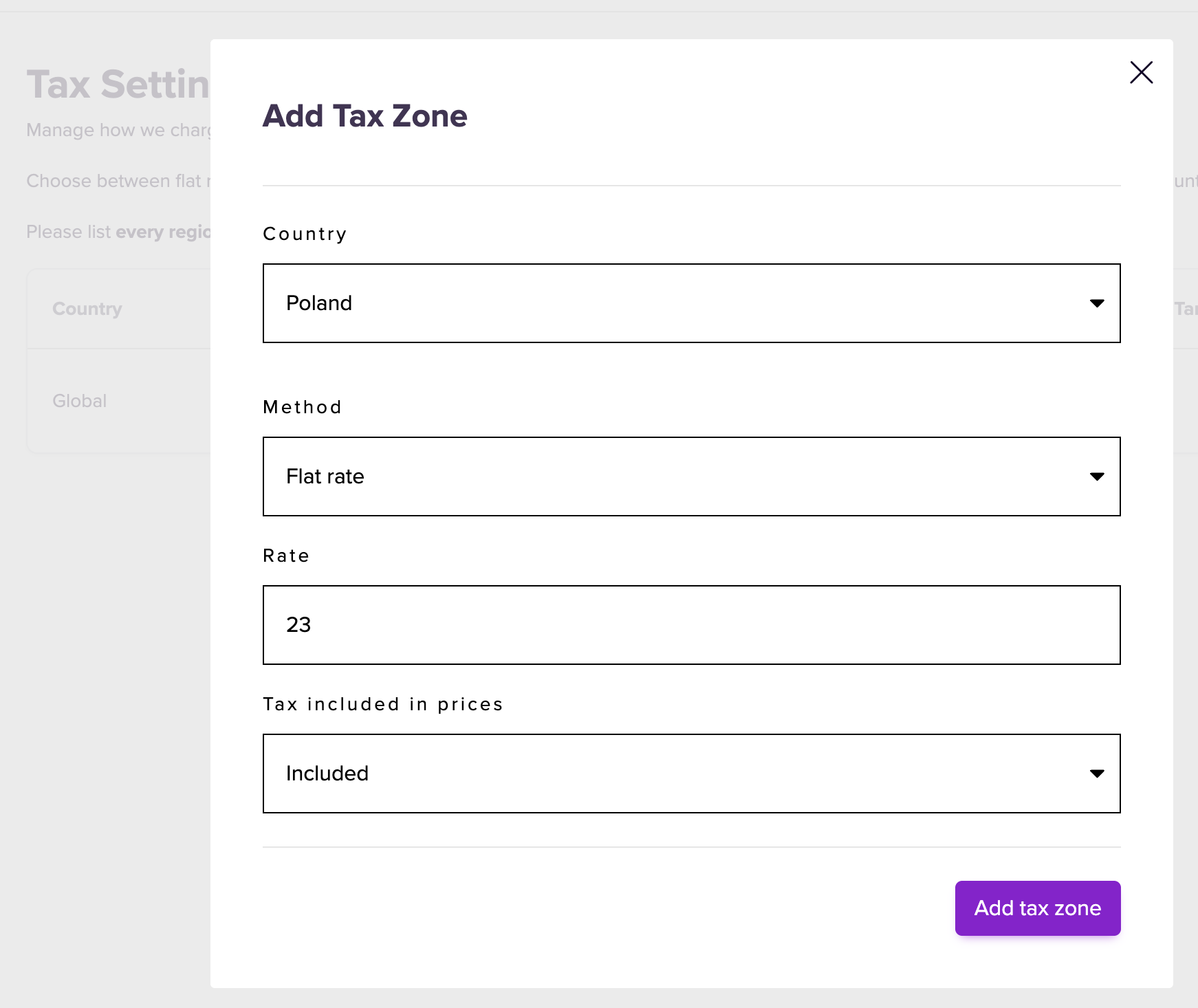
The manual tax rates option allows Purple Dot to calculate a fixed % of tax. In each tax zone, you can specify whether this tax is already included in the price of the relevant Shopify Market or not. Here is an example fixed rate configuration to charge 23% VAT to Polish shoppers when the prices in Shopify configured for the Polish market already include VAT:
Using the Purple Dot tax engine
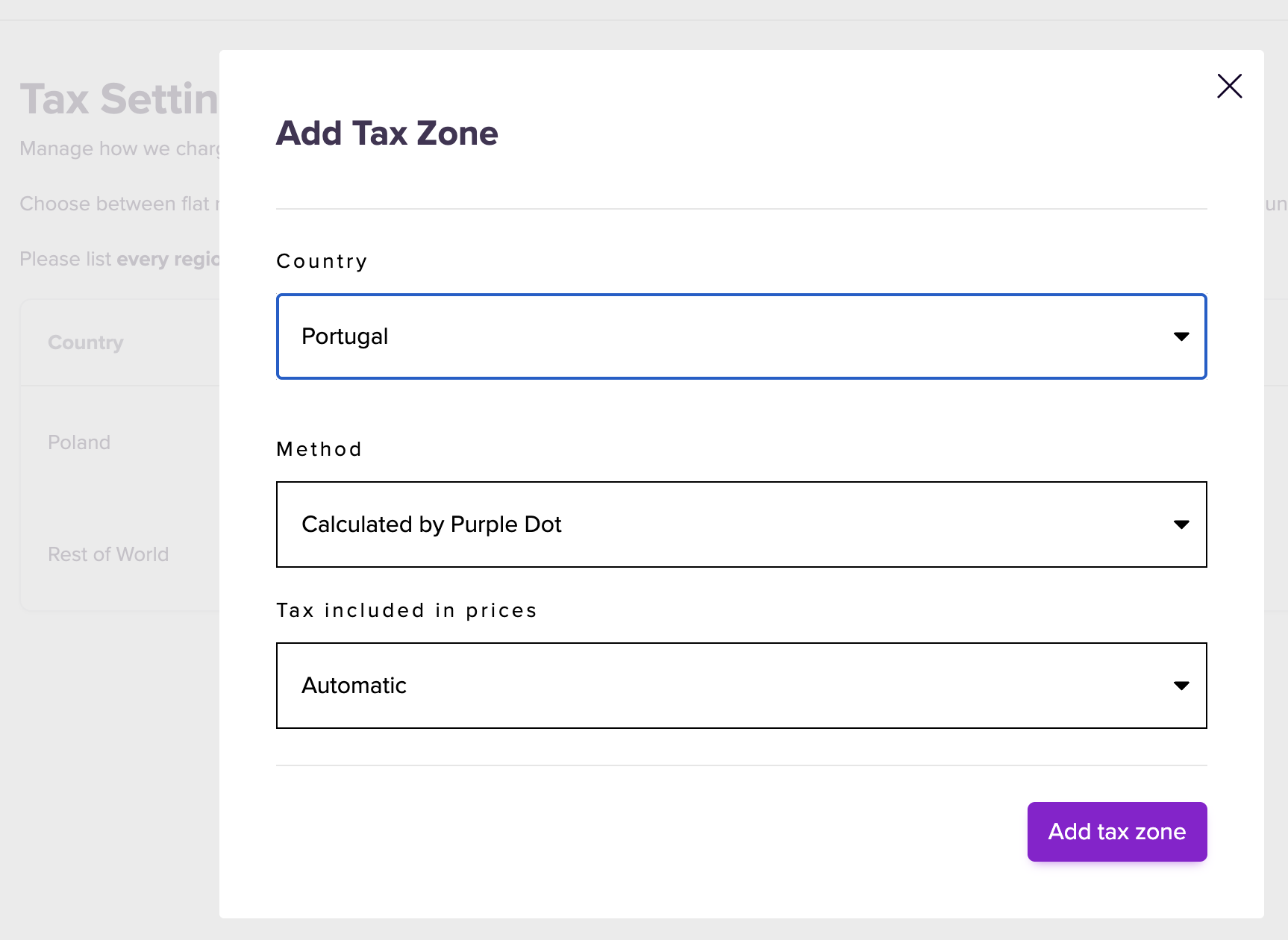
You may also choose to delegate the task of working out the correct amount of sales tax to the (free) Purple Dot tax engine. To configure taxes on pre-orders sold to Portuguese shoppers to use this, you need to setup the tax for Portugal like so:
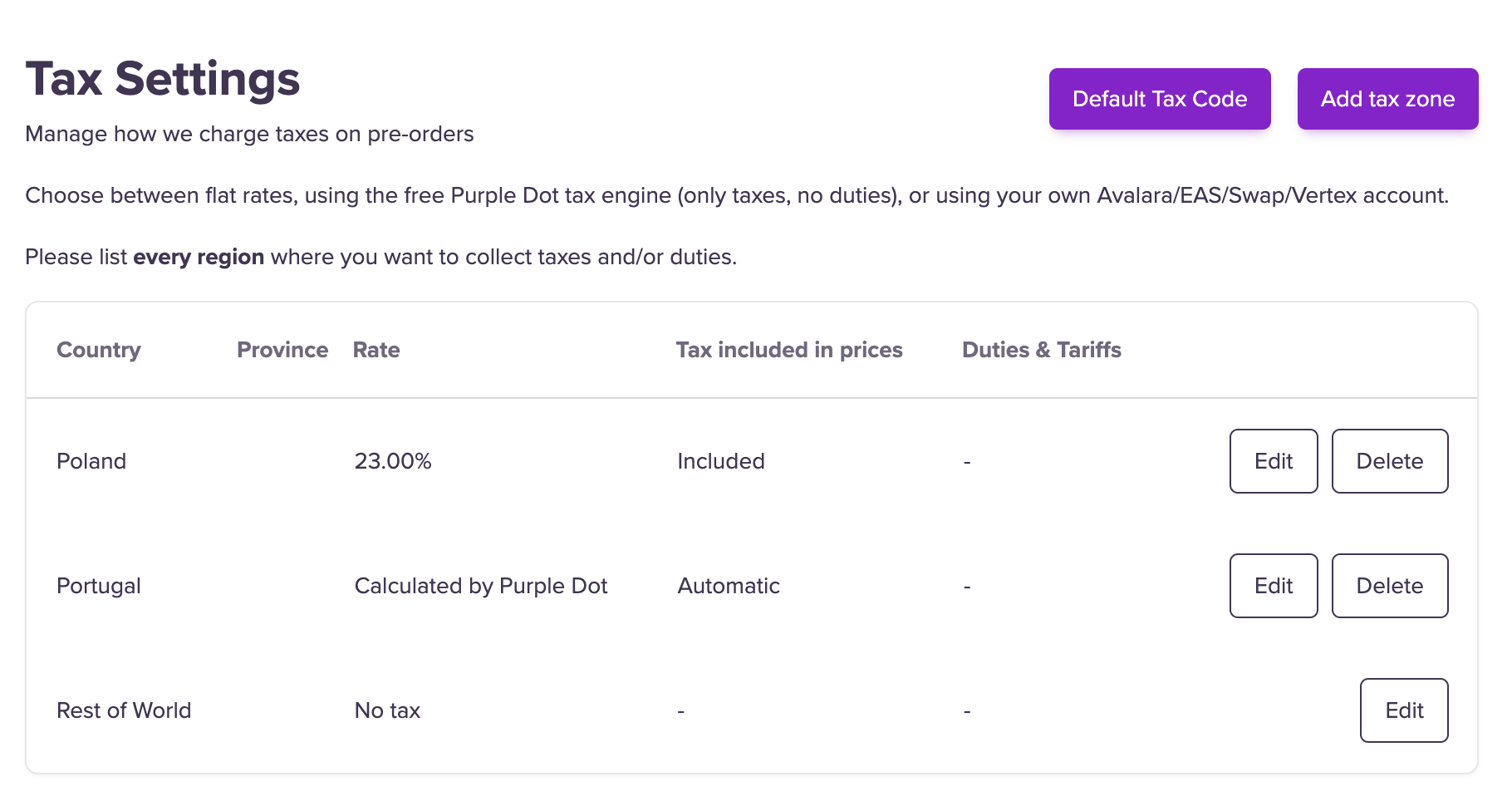
If we have save both of these tax zones, our tax settings will look like this
we will be calculating inclusive tax amounts at a rate of 23% for pre-orders shipping to Poland
we will be relying on Purple Dot to calculate the right amount of tax (and to know if the price in Shopify already includes or excludes this tax) for pre-orders shipping to Portugal
the Purple Dot checkout will not be calculating any taxes or duties in any other region
Using Purple Dot with Avalara
See https://purple-dot.support.site/article/how-to-use-avalara-with-purple-dot.
Using Purple Dot with EAS
See https://purple-dot.support.site/article/how-to-use-eas-with-purple-dot.
Using Purple Dot with Swap Global
See https://purple-dot.support.site/article/how-to-use-swap-global-with-purple-dot.
Using Purple Dot with Vertex
See https://purple-dot.support.site/article/how-to-use-vertex-with-purple-dot.