
How to use EAS with Purple Dot
Shopify stores
How you need to use Purple Dot with EAS depends on whether Purple Dot is integrated into your Shopify store as separate checkout or as a payment provider inside Shopify's checkout. See more here to learn about these two options.
As payment provider inside Shopify checkout
No extra setup is required. The same taxes that already work for your regular sales will work for pre-orders also.
As separate checkout
The Purple Dot checkout can use the same tax rules as your regular checkout. All you have to do is
connect Purple Dot to your EAS account
configure some/all tax zones in Purple Dot to use EAS
Connecting to EAS
Log in to the Purple Dot Merchant Portal.
Go to Settings → Integrations.
Under Tax, click Connect for EAS.
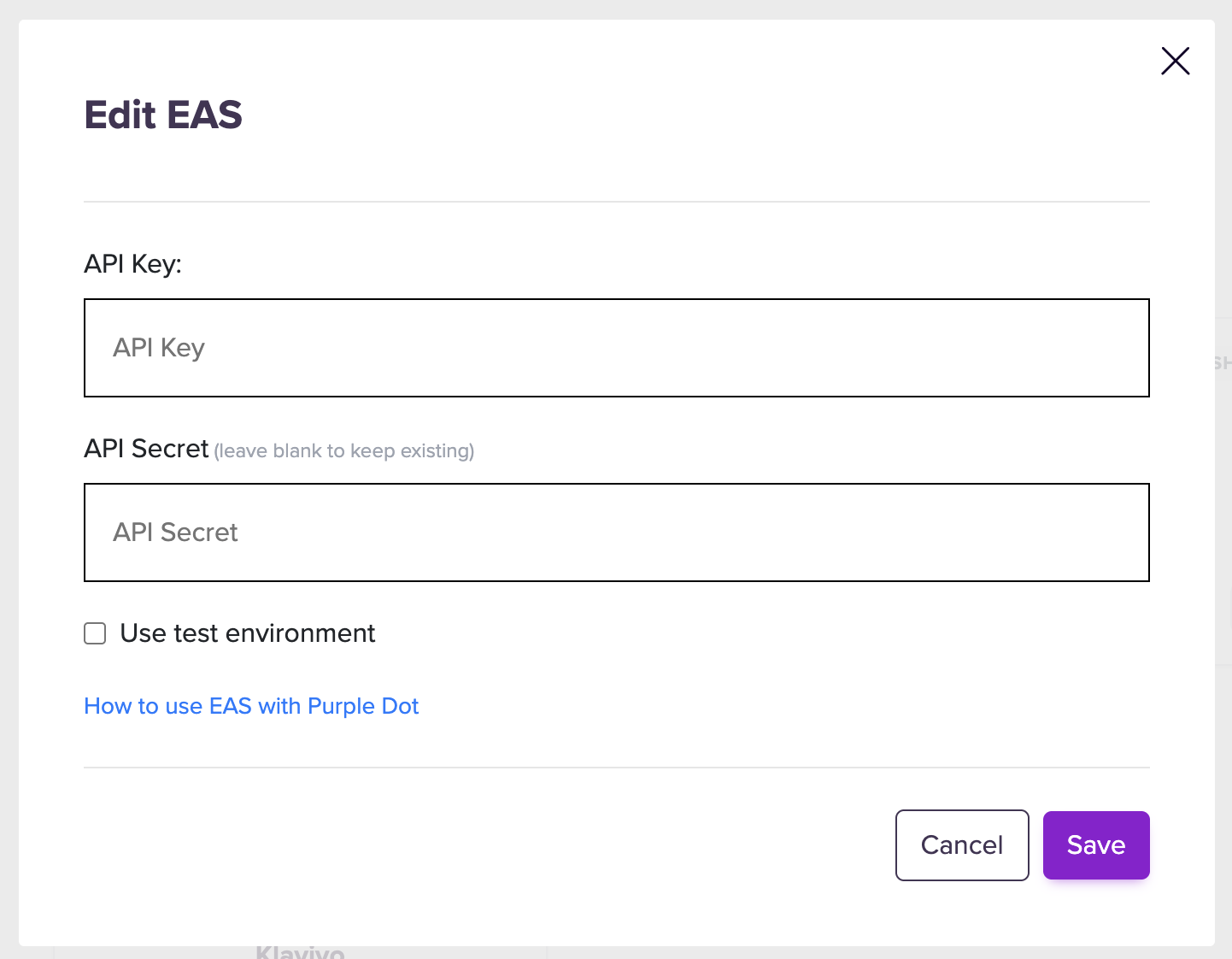
You need to provide the API Key and API Secret, which will be used by Purple Dot for connecting to your EAS account. This guide explains where to find these.
Paste them into the EAS connection form in Purple Dot:
Configuring tax zones
The final step is to list all the markets where you want Purple Dot checkout to charge taxes.
Log in to the Purple Dot Merchant Portal.
Go to Settings → Taxes.
You can edit the Global zone to have Purple Dot use EAS to calculate tax in all regions:
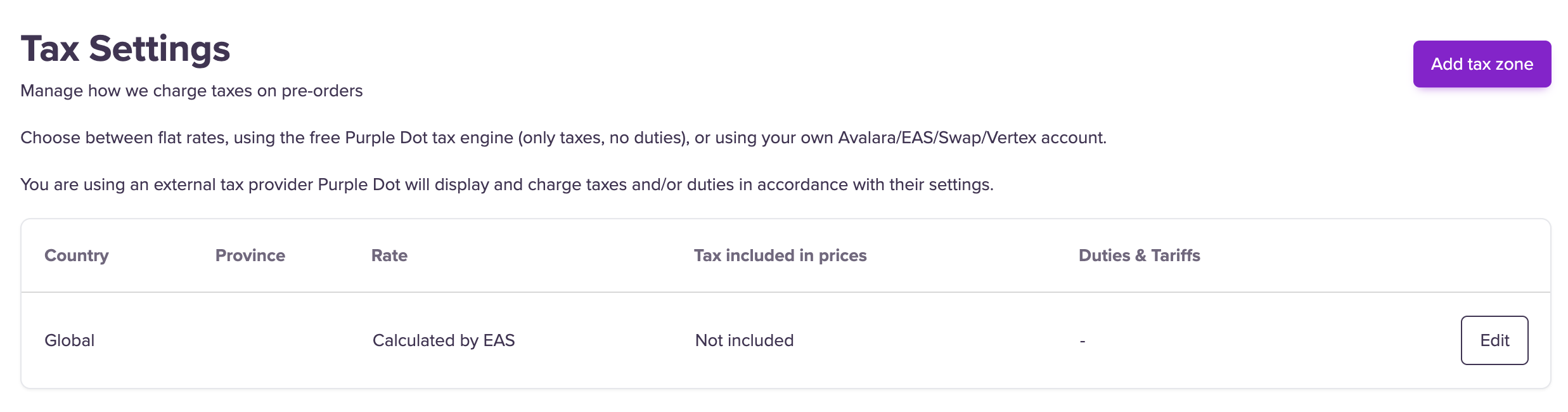
Or you add an explicit list of tax zones if you instead wanted Purple Dot to use EAS in only some countries or if you wanted to use EAS for some tax zones and another provider in other tax zones.