
How to use Swap Global with Purple Dot
Shopify stores
How you need to use Purple Dot with Swap Global depends on whether Purple Dot is integrated into your Shopify store as separate checkout or as a payment provider inside Shopify's checkout. See more here to learn about these two options.
As payment provider inside Shopify checkout
No extra setup is required. The same pricing and tax strategies that already work for your regular sales will work for pre-orders also.
As separate checkout
The Purple Dot checkout can use the same pricing and tax strategies as your regular checkout. All you have to do is
connect Purple Dot to your Swap Global account
configure some/all tax zones in Purple Dot to use Swap
if you are looking to charge duties, make sure all the relevant products have correct HS codes saved in Shopify
Connecting to Swap
Log in to the Purple Dot Merchant Portal.
Go to Settings → Integrations.
Under Tax, click Connect for Swap.
You need to obtain an API Key from Swap, which will be used by Purple Dot for connecting to Swap. Instructions for how to do that are here.
Paste the API Key into the Purple Dot setup screen.
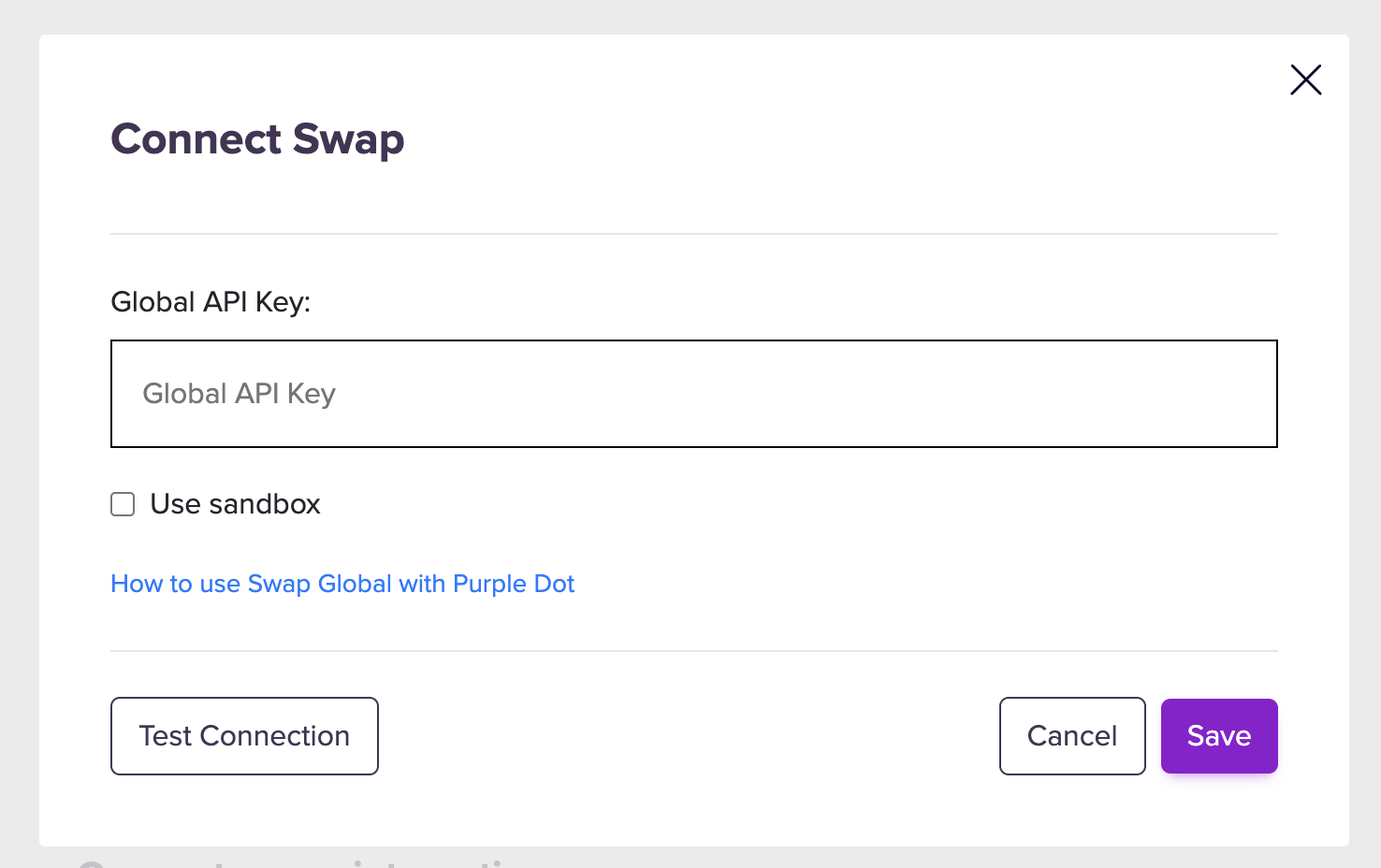
You can click on "Test Connection" to verify that the API Key is working as required.
Configuring tax zones
The final step is to list all the markets where you want Purple Dot checkout to charge taxes and/or duties.
Log in to the Purple Dot Merchant Portal.
Go to Settings → Taxes.
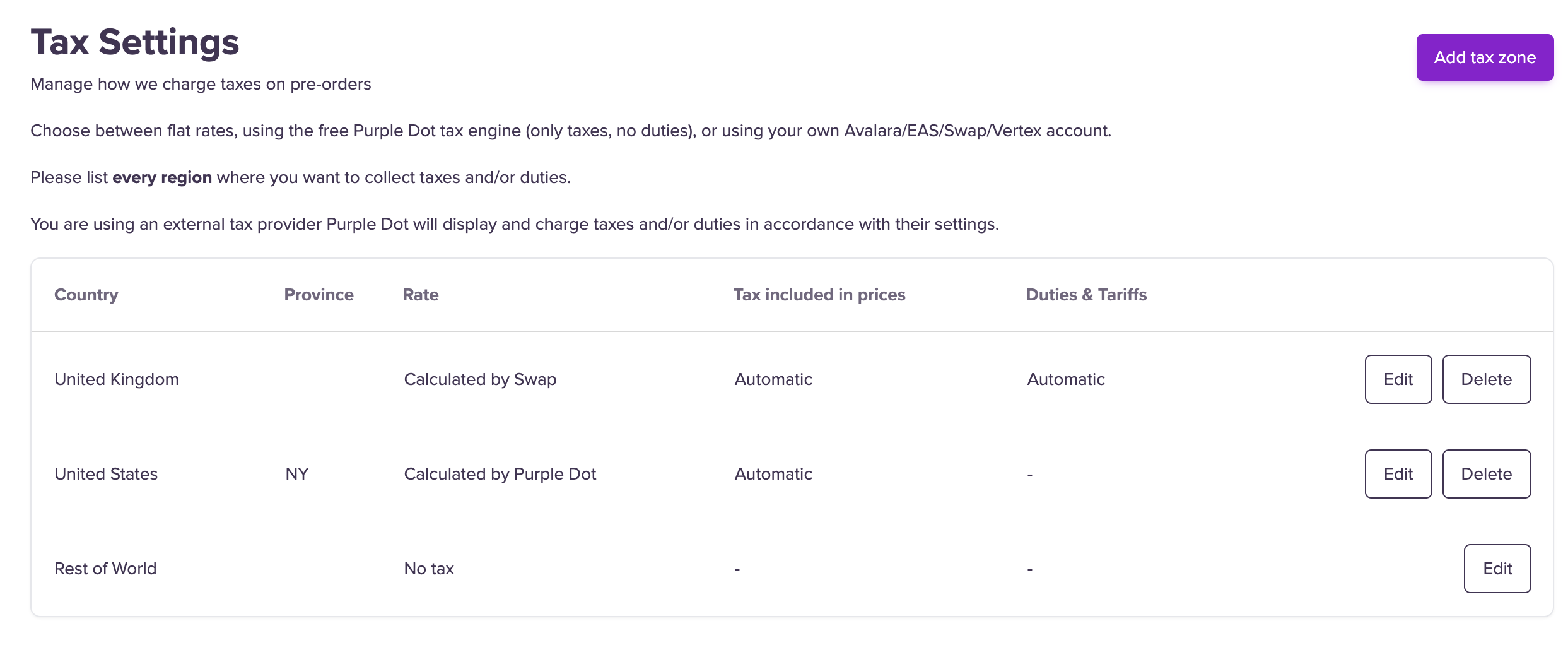
Here you can add a tax zone for every region where you need to charge some tax, and which of the connected tax integrations you would like to use with each tax zone.
Swap Global is a product aimed at your international shoppers. In your Swap Global dashboard it is currently not possible to create a Pricing Zone that caters to your domestic shoppers.
Consequently, to charge some tax/duties on domestic pre-order sales, you need to add a tax zone in Purple Dot that uses one of the other tax engines Purple Dot supports.
Here is an example configuration for a US brand that is selling
to US (domestic) and UK (international) shoppers
has crossed the nexus threshold in the state of NY only
How does Purple Dot work with the different Swap tax strategies?
The purpose of defining tax zones inside Purple Dot is to tell the Purple Dot checkout
in which regions to ask Swap for calculations
that Swap is the tax engine to use for that tax region
Any further configuration, like
how much tax and/or duties to charge in the given region
whether prices displayed to the shopper are inclusive or exclusive of either taxes or duties
is controlled entirely inside your Swap account.
How is Purple Dot checkout using Swap Global?
Where the Purple Dot checkout is configured to use Swap, it calculates taxes and/or duties by creating uncommitted calculations inside Swap and storing the result in the Purple Dot system.
To charge the correct amount of duties for a given product, you must set correct HS codes for each product in Shopify itself. The Purple Dot checkout will pass those through to Swap Global when asking it to calculate correct rates.
When a product does not have a HS code defined in Shopify, the PD checkout will use Swap's functionality to try to identify the right HS code for the product. See more here.
Remitting tax for pre-orders with Swap Global
Tax is remitted automatically by Swap Global after the pre-order is released from Purple Dot for fulfilment.
Interaction between tax and shipping connections when using Swap Global
In order to support some of their tax strategies, Swap Global requires that - just as with regular sales through the Shopify checkout - the Purple Dot checkout must use Swap for both taxes/duties as well as shipping. You cannot use Swap Global for taxes and/or duties but another provider for shipping.